





Thank you! Your submission has been received!
Oops! Something went wrong while submitting the form.



Email remains the backbone of everyday communication in most businesses.
Email configuration in Dynamics 365 is often underestimated, but it’s one of the most critical foundations for your CRM’s success. Done right, it means your team can focus on engaging customers, not wrestling with lost messages or tracking errors.
Between choosing the right sync method, handling security protocols, and ensuring messages are correctly tracked, it’s easy to get stuck or create confusion that slows your team down.
By following these steps, from server profiles to mailbox settings, templates, and troubleshooting, you are building a communication system that works reliably and scales with your business.
This guide cuts through the complexity with clear, actionable steps. We will show you how to set up and fine-tune email integration in Dynamics 365 CRM so your users can communicate effortlessly, and your data stays clean and organized.
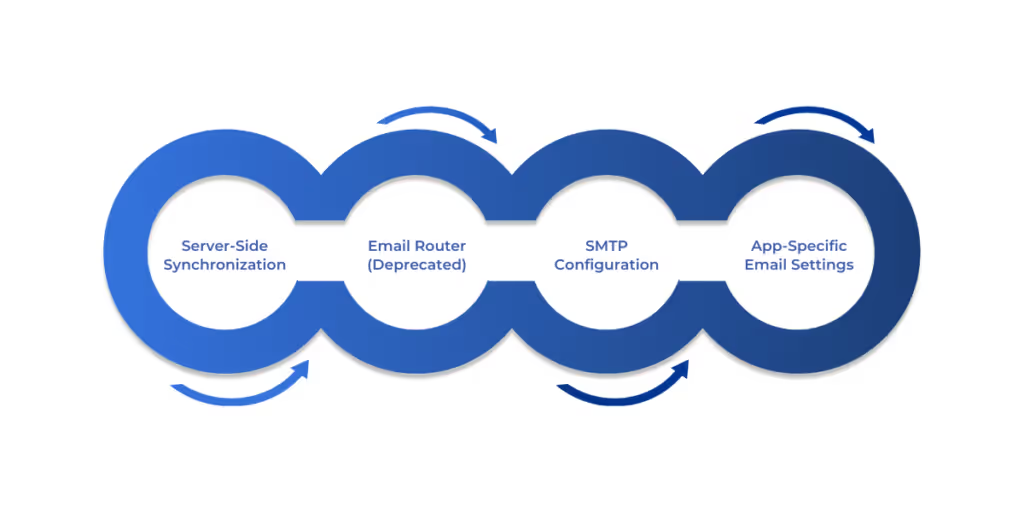
Dynamics 365 CRM supports multiple modes of email integration tailored to varying organizational needs and infrastructure setups. While the classic methods remain relevant, Microsoft has continuously evolved the platform’s email capabilities to enhance reliability, security, and automation.
By understanding these evolving integration modes and innovations, organizations can optimize their email configuration in Dynamics 365 for maximum productivity and security.
Also read: Retail with Dynamics 365: Meeting modern customer expectations like a pro
Now that you understand the different ways email can connect with Dynamics 365, let’s walk through how to set it up properly.
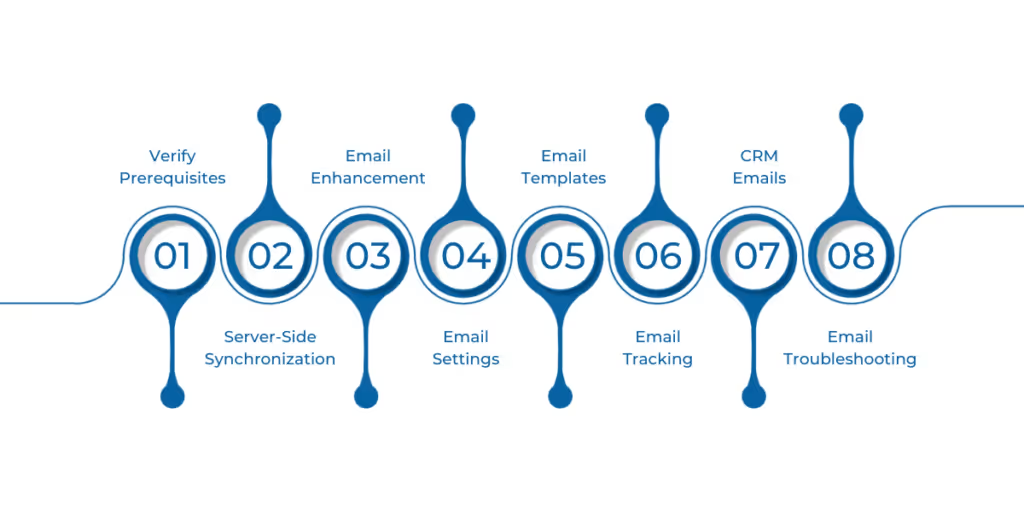
To ensure smooth email communication, it’s important to understand how email configuration in Dynamics 365 is processed, tracked, and standardized. This section covers key settings and templates you need to set up for effective email management:
Before configuring email, ensure:
Server-Side Synchronization (SSS) is the backbone of modern email integration in Dynamics 365 CRM. It enables automatic, bi-directional syncing of emails, calendar items, contacts, and tasks between Dynamics and your mail server—whether Exchange Online, on-prem Exchange, or another supported service. Setting it up correctly ensures your users get real-time updates and reduces manual overhead.
How to configure SSS:
By completing these steps, you build a reliable foundation for email flow into and out of your CRM.
Dynamics 365 offers an “Enhanced Email” feature that provides a richer, timeline-integrated interface for email activities, improving usability and context.
To enable and customize this:
These configurations ensure users can work with emails efficiently and within your organization's policies.
With your email server and mailboxes ready, we’ll move on to how emails get handled inside the system to ensure everything stays organized and trackable.
Once you’ve set up the enhanced email interface for your users, it’s important to configure how emails are processed and tracked behind the scenes. Proper email processing ensures that incoming and outgoing emails are handled automatically and linked correctly to CRM records, boosting efficiency and data accuracy.
Configure Email Processing Profiles
Go to Settings > Administration > System Settings, then select the Email tab.
Adjust tracking preferences such as:
These settings help maintain relevant communication history and reduce noise.
Standardizing your outbound email content strengthens brand consistency and saves time. Dynamics 365 CRM allows you to create reusable email templates and manage user signatures efficiently.
Create Email Templates
While Dynamics 365 doesn’t provide a centralized signature management tool by default, you can:
Consistent signatures reinforce professionalism and help meet legal or compliance requirements.
Once your emails look consistent, it’s important to ensure every message links to the right customer record—that’s where tracking comes in.
Accurately tracking which emails relate to which CRM records is critical for sales and service transparency. Dynamics offers flexible tracking options:
Fine-tuning these settings helps maintain clean, accurate activity histories.
Once configured, users can compose and send emails directly inside Dynamics 365 CRM:
Suggested reading: Microsoft Dynamics 365- Your steering to drive customer engagement success
Finally, here’s how to quickly identify and fix common email issues before they disrupt your team’s productivity.
Even with the best configuration, issues can arise. Common troubleshooting tips include
Proactive monitoring minimizes disruption and keeps email data trustworthy.
Getting your email configuration in Dynamics 365 right keeps your customer interactions smooth, your team productive, and your data trustworthy. When emails flow effortlessly and are tracked accurately, everyone spends less time chasing messages and more time building relationships.
This setup lays the groundwork for better communication, fewer errors, and faster responses. But remember, email management is a continuous process. Regular reviews and tweaks ensure your system evolves with your business.
Take these steps with WaferWire, and you will turn your CRM’s email function from a potential headache into one of your most powerful tools.
Partner with WaferWire and turn your email configuration in Dynamics 365 CRM into a strategic advantage that drives real business results—reliably, securely, and at scale.




Email remains the backbone of everyday communication in most businesses.
Email configuration in Dynamics 365 is often underestimated, but it’s one of the most critical foundations for your CRM’s success. Done right, it means your team can focus on engaging customers, not wrestling with lost messages or tracking errors.
Between choosing the right sync method, handling security protocols, and ensuring messages are correctly tracked, it’s easy to get stuck or create confusion that slows your team down.
By following these steps, from server profiles to mailbox settings, templates, and troubleshooting, you are building a communication system that works reliably and scales with your business.
This guide cuts through the complexity with clear, actionable steps. We will show you how to set up and fine-tune email integration in Dynamics 365 CRM so your users can communicate effortlessly, and your data stays clean and organized.
Dynamics 365 CRM supports multiple modes of email integration tailored to varying organizational needs and infrastructure setups. While the classic methods remain relevant, Microsoft has continuously evolved the platform’s email capabilities to enhance reliability, security, and automation.
By understanding these evolving integration modes and innovations, organizations can optimize their email configuration in Dynamics 365 for maximum productivity and security.
Also read: Retail with Dynamics 365: Meeting modern customer expectations like a pro
Now that you understand the different ways email can connect with Dynamics 365, let’s walk through how to set it up properly.
To ensure smooth email communication, it’s important to understand how email configuration in Dynamics 365 is processed, tracked, and standardized. This section covers key settings and templates you need to set up for effective email management:
Before configuring email, ensure:
Server-Side Synchronization (SSS) is the backbone of modern email integration in Dynamics 365 CRM. It enables automatic, bi-directional syncing of emails, calendar items, contacts, and tasks between Dynamics and your mail server—whether Exchange Online, on-prem Exchange, or another supported service. Setting it up correctly ensures your users get real-time updates and reduces manual overhead.
How to configure SSS:
By completing these steps, you build a reliable foundation for email flow into and out of your CRM.
Dynamics 365 offers an “Enhanced Email” feature that provides a richer, timeline-integrated interface for email activities, improving usability and context.
To enable and customize this:
These configurations ensure users can work with emails efficiently and within your organization's policies.
With your email server and mailboxes ready, we’ll move on to how emails get handled inside the system to ensure everything stays organized and trackable.
Once you’ve set up the enhanced email interface for your users, it’s important to configure how emails are processed and tracked behind the scenes. Proper email processing ensures that incoming and outgoing emails are handled automatically and linked correctly to CRM records, boosting efficiency and data accuracy.
Configure Email Processing Profiles
Go to Settings > Administration > System Settings, then select the Email tab.
Adjust tracking preferences such as:
These settings help maintain relevant communication history and reduce noise.
Standardizing your outbound email content strengthens brand consistency and saves time. Dynamics 365 CRM allows you to create reusable email templates and manage user signatures efficiently.
Create Email Templates
While Dynamics 365 doesn’t provide a centralized signature management tool by default, you can:
Consistent signatures reinforce professionalism and help meet legal or compliance requirements.
Once your emails look consistent, it’s important to ensure every message links to the right customer record—that’s where tracking comes in.
Accurately tracking which emails relate to which CRM records is critical for sales and service transparency. Dynamics offers flexible tracking options:
Fine-tuning these settings helps maintain clean, accurate activity histories.
Once configured, users can compose and send emails directly inside Dynamics 365 CRM:
Suggested reading: Microsoft Dynamics 365- Your steering to drive customer engagement success
Finally, here’s how to quickly identify and fix common email issues before they disrupt your team’s productivity.
Even with the best configuration, issues can arise. Common troubleshooting tips include
Proactive monitoring minimizes disruption and keeps email data trustworthy.
Getting your email configuration in Dynamics 365 right keeps your customer interactions smooth, your team productive, and your data trustworthy. When emails flow effortlessly and are tracked accurately, everyone spends less time chasing messages and more time building relationships.
This setup lays the groundwork for better communication, fewer errors, and faster responses. But remember, email management is a continuous process. Regular reviews and tweaks ensure your system evolves with your business.
Take these steps with WaferWire, and you will turn your CRM’s email function from a potential headache into one of your most powerful tools.
Partner with WaferWire and turn your email configuration in Dynamics 365 CRM into a strategic advantage that drives real business results—reliably, securely, and at scale.








.svg)
